

Start an intent scan
To start a scan, open Intent data, add one or more topics under Run an Intent Scan, choose when it runs, and start it. A scan finds the people who researched your topic across the internet in the last 24 hours, matched to names, jobs and contact details.
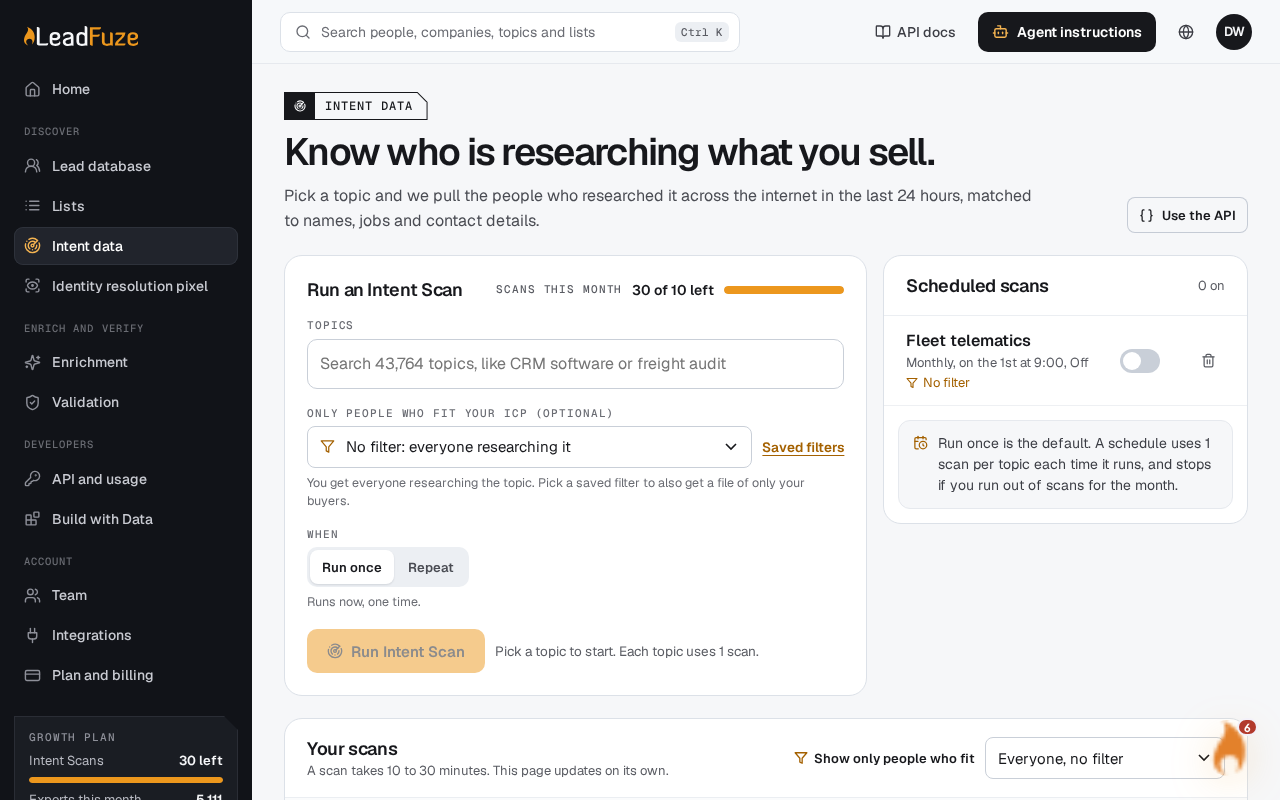
#Add your topics
Type at least 2 characters in the Topics box and select a result. Add up to 10 topics. Each one runs as its own scan and uses 1 Intent Scan. See Choose business or consumer intent categories for how topics are labelled.
#Pick a saved filter (optional)
Under Only people who fit your ICP (optional), choose a saved filter. The default is "No filter: everyone researching it".
With a filter, you get everyone, plus a second file of only the people who match it. The filter does not change how many scans you use. To create filters, use Saved filters to go to the lead database.
#Choose when it runs
Under When, pick Run once or Repeat. Run once is the default.
If you pick Repeat, choose Daily, Weekly, Monthly or Every N days. For Every N days, enter a whole number from 2 to 90.
#Run the scan
Select the run button. The page confirms with "Scan started." or "[number] scans started."
#How many scans you have
The Scans this month line shows how many Intent Scans you have left, for example "20 of 50 left". When you run out, you see "You have no Intent Scans left this month. They reset on [date]."
If some topics start before you run out, the message adds "You ran out of scans before every topic started."
If a topic is already running, it is skipped. The message says how many topics were skipped.
#Follow progress
A scan takes 10 to 30 minutes. Your scans updates on its own. Statuses are:
| Status | Meaning |
|---|---|
| Queued | Starts shortly |
| In progress | About 20 minutes |
| Fetched | Matching people |
| Enriching | Matching contact details |
| Done | Results are ready |
| Failed | The scan did not complete |
To retry a failed scan, use its retry action in Your scans. You see "Retrying. It does not use another scan." Only a failed scan can be retried, and only once. If the topic is already running again, you see a message saying so.
#Repeating scans
- A repeating scan uses 1 scan per topic each time it runs.
- Runs happen at 9:00 in your account's time zone. A new schedule never runs on the day you create it.
- Daily runs the next day. Weekly runs on Mondays. Monthly runs on the first of the next month. Every N days runs N days after today.
- If you have no scans left, or the last scan of that topic is still running, that run is skipped. The schedule shows "Skipped: no Intent Scans left this month." or "Skipped: the last scan of this topic was still running." Skipped runs are not made up later.
- A schedule turns off if the person who set it up leaves the account.
Manage repeating scans in Scheduled scans. Use the toggle to pause a schedule. When you turn it back on, the next run is at 9:00. Use the bin icon to remove it. Removing a schedule keeps the scans it already ran in Your scans.
Important
Results stay available for 7 days after a scan finishes, then they are deleted. Download what you need before then.
Was this article helpful?
Still stuck?