

Choose business or consumer intent categories
You choose a category by searching for a topic on the Intent data page. Every result is labelled as a business or consumer topic. There is no separate switch for B2B or B2C. Pick the topics you want and the scan uses each topic's own type.
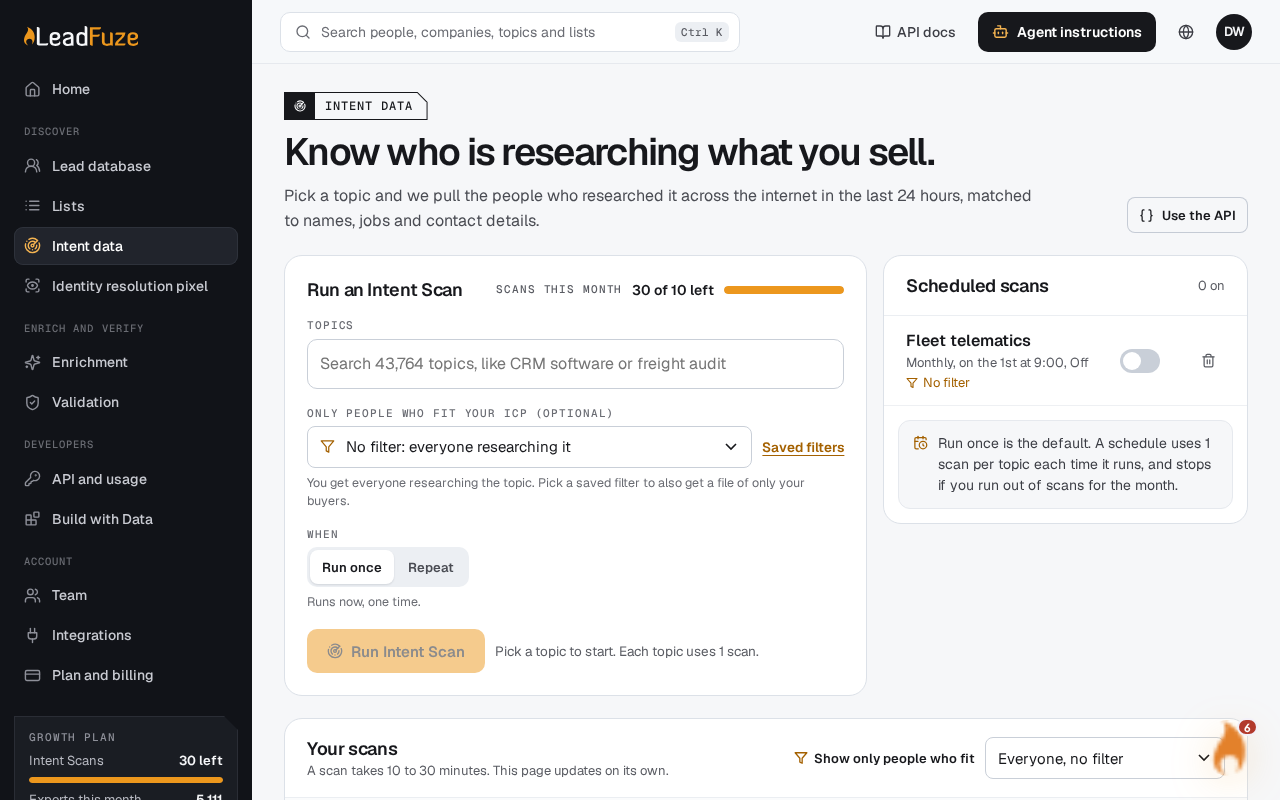
#Search for a topic
In the Topics box under Run an Intent Scan, type at least 2 characters. For example, try "CRM software" or "freight audit". The placeholder shows how many topics you can search.
Each result shows:
- The topic name, and a short description when one is available.
- An approximate number of people a day who research it, such as "~1,200 a day".
- A Business or Consumer tag. When there is no daily figure, the result shows Business topic or Consumer topic instead.
Business topics are B2B. Consumer topics are B2C. The two catalogs are searched together, so one search can return both types.
The list shows up to 8 matches. Select a topic to add it as a chip in the Topics box. Use the x on a chip to remove it.
#Check your estimate
When every topic you picked has a daily figure, you see a line like "About 1,200 people a day research this topic." With several topics, the line says topics can overlap. Treat that number as a planning estimate.
#What you might not see
- Topics already running. A topic with a scan still in progress does not appear in search. Topics whose last scan is done or failed do appear.
- Topics your account cannot scan. If your account is limited to certain categories, only those appear. If you somehow start one that is not allowed, you see "Your account cannot scan [topic]."
- No results. You see "No topic matches that yet. Try a broader word, like software, freight or insurance."
- Search unavailable. You see "Topic search is not reachable right now. Try again in a minute."
Note
You can mix business and consumer topics in one scan, up to 10 topics at a time. Each topic uses 1 Intent Scan.
Was this article helpful?
Still stuck?