

Get contact profiles with intent matches
After a scan finds its matches, LeadFuze fills in the full contact profile for each one. It then packs the profile CSVs into ZIP files for download. You don't start either step. Both run automatically while the scan shows as enriching.
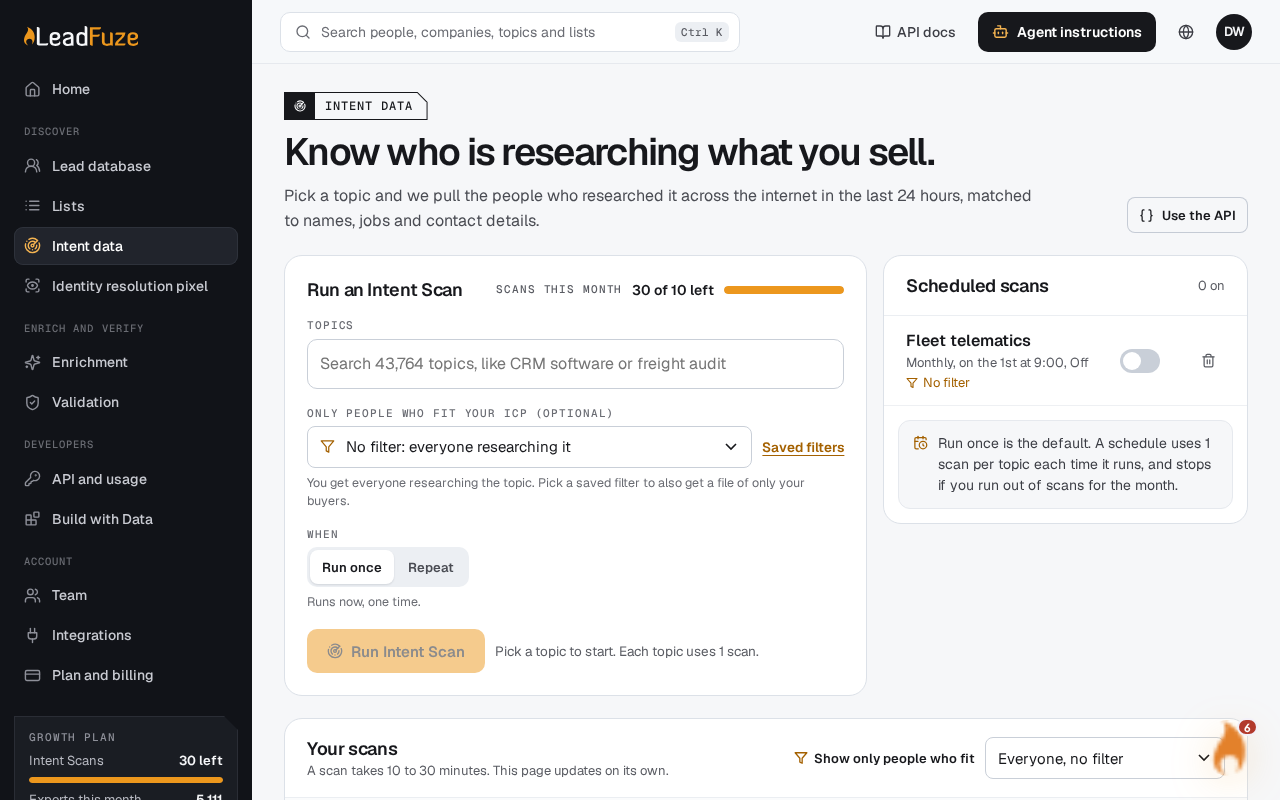
#What happens to a scan
- Profiles are fetched. LeadFuze looks up the full contact profile for each match and writes the profiles to CSV files.
- The CSVs are compressed. Every scan with profile CSVs goes through compression, even one with a single CSV. The CSVs are grouped into ZIP files. Each group is under 1 GB uncompressed.
- The scan finishes. Its status changes to
doneand the ZIP files are ready to download.
In the scan list, the statuses enriched and compressing both appear as enriching. Use the enriching status to tell that profiles are being added or files are being compressed.
If profile lookup fails, the scan fails. LeadFuze does not export a file with missing contacts. See Retry a failed intent scan.
#What the profile files contain
Each row starts with email_hash, followed by the profile columns. A few details to know:
- The contact ID column is named
lf_id. - Internal update timestamps and metadata columns are left out.
- The separate
hashed_emailsCSV also useslf_id. It has nocreated_atcolumn.
See every profile column
email_hash, lf_id, first_name, last_name, business_email, programmatic_business_emails, mobile_phone, direct_number, personal_phone, linkedin_url, personal_address, personal_address_2, personal_city, personal_state, personal_zip, personal_zip4, personal_emails, additional_personal_emails, gender, age_range, income_range, net_worth, married, children, homeowner, dob, job_title, seniority_level, department, professional_address, professional_address_2, professional_city, professional_state, professional_zip, professional_zip4, company_name, company_domain, company_phone, company_sic, company_address, company_city, company_state, company_zip, company_linkedin_url, company_revenue, company_employee_count, primary_industry, business_email_validation_status, personal_emails_validation_status, work_history, education_history, company_description, related_domains, social_connections, dpv_code, company_naics, company_country, contact_country, job_title_normalized, seniority_level_2, department_2, historical_programmatic_emails.
#How long files stay available
Finished scans stay in your history for 7 days. Their files stay downloadable for the same time. After that, the matches are no longer kept. If you try to download them, you see: "These matches are no longer kept. Scan results stay for 7 days."
Tip
Download your files within 7 days of a scan finishing.
Was this article helpful?
Still stuck?