

See how many leads match your search
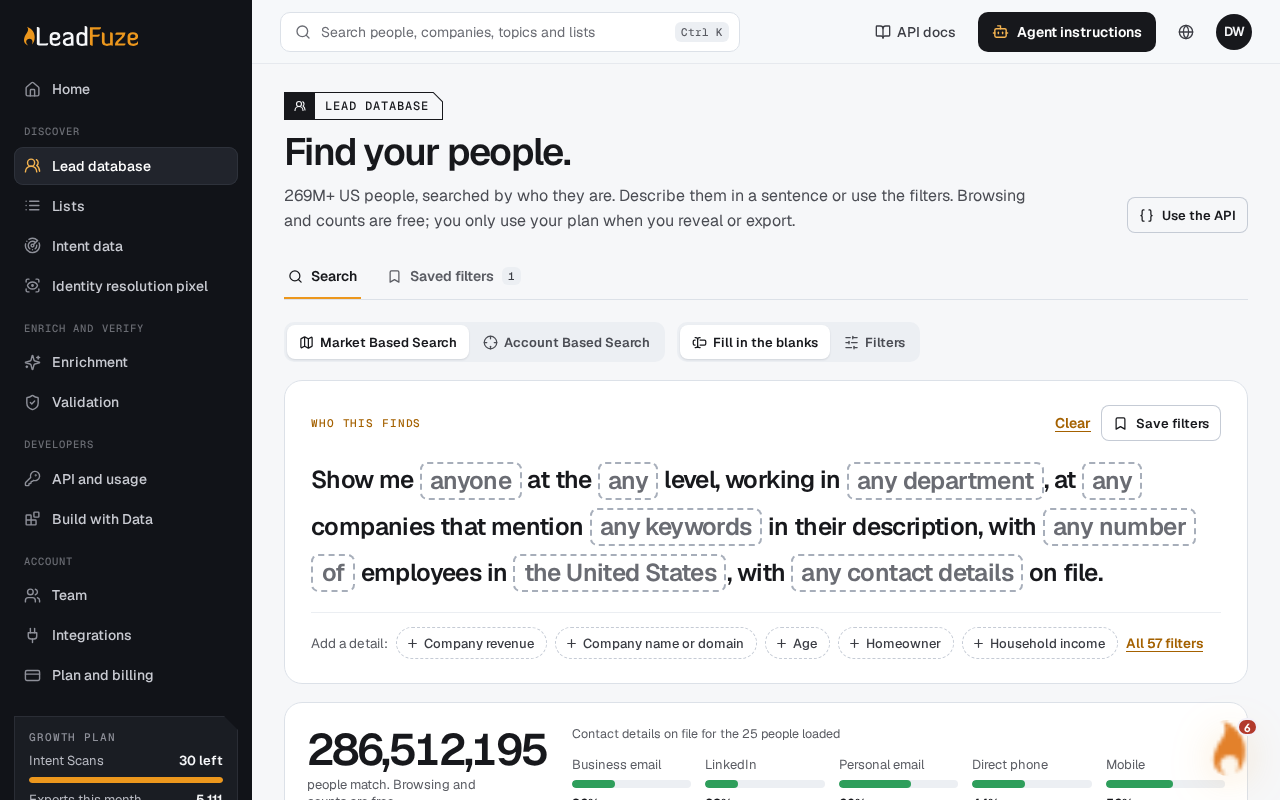
The Leads database shows how many people match your filters as soon as you search. Check that number first. Browsing and counts are free. Only revealing contacts and building a list use your exports.
#How the count updates
You don't need to press a search button. The search runs on its own about a second after you stop changing your criteria. Each change replaces the previous results and the match count.
If the database can't be reached, you see this message: "The lead database is not answering right now. Your filters are kept; try again in a minute." Your filters stay in place.
The database also reports whether the total is exact. Treat the number as a guide when you decide whether to narrow your search.
#Account searches wait for a complete value
An account search looks up one exact value, such as a LinkedIn URL, an email, a company domain or a phone number. It waits until the value is complete before it searches. A half-typed value never returns everyone.
For a LinkedIn lookup, the URL must include the profile part, not just linkedin.com/in/.
#Read the criteria summary
Saved searches show their criteria as one readable line. For example:
VP of Operations at Warehousing And Storage companies, 51 to 500 people, OH IL
The line is built in this order:
| Part | How it reads |
|---|---|
| Who | Job titles, joined with "or". Seniority and department are added, such as "VP people in operations". With no title or seniority it says "Anyone". |
| Industry | Added as "at … companies". |
| Company size | Shown as "… people". Neighbouring size bands merge into one range, so 51 to 100, 101 to 250 and 251 to 500 read as "51 to 500 people". Bands that don't touch are listed with "or". |
| Revenue | Shown as "… revenue". |
| Places | States, cities and ZIP codes, up to six. More are shown as "and more". |
| Keywords | Shown as matching "your words". |
These rules apply to the line:
- Any list of more than three values shows the first three, then "or N more".
- "Vp" is shown as "VP" and "Cxo" as "C-level".
- A line longer than 140 characters is cut off with "...".
- A search with no criteria at all reads "Everyone".
If the line doesn't describe the people you want, change your filters before you go further.
Tip
A very large count usually means the criteria are too broad. Add a seniority, an industry or a location, and watch the number drop.
#When you're ready to use the results
These actions use exports:
- Reveal contacts. If you viewed a contact in the last 30 days, revealing it again is free.
- Build list, which creates a CSV or Excel contact list in the background.
If you're out of exports, you see "You are out of exports this month. Upgrade in Plan and billing to reveal more."
Was this article helpful?
Still stuck?