

Add a website to IDRP
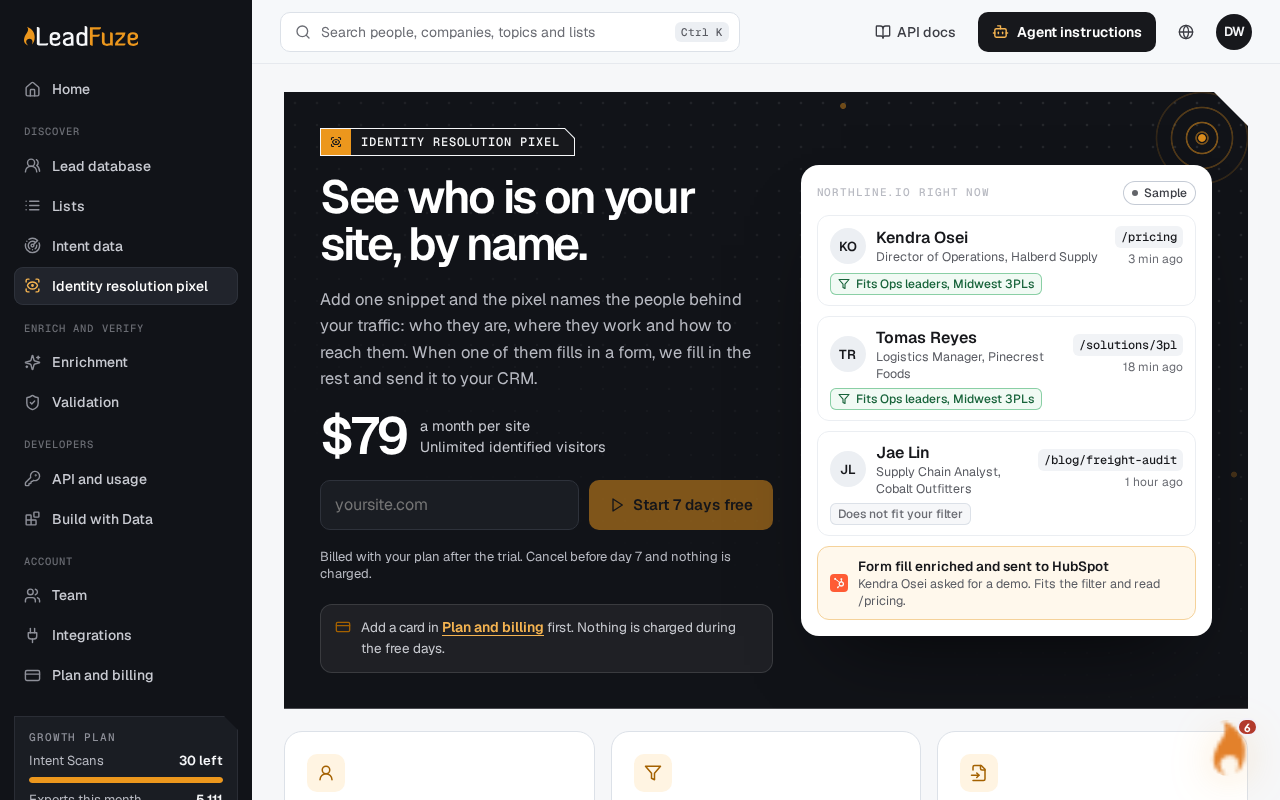
Open the Identity resolution pixel page, click Add a site, then install the pixel on your website. Each website you add starts with a 7-day free trial. After the trial, each site costs $79 a month.
Important
Each website needs its own site entry and its own subscription. To track two websites, add two sites.
#Set up billing
The page checks that billing is ready for your account. If it is not, add a payment method on the billing page (/app/billing) first. Without billing set up, you cannot activate a site.
#Add the site
Go to the Identity resolution pixel page. Click Add a site. You can also open the Sites and billing tab. Enter your website's name and URL.
#Get your pixel code
Open the Install tab to see the pixel code for your site. The code contains your site's unique project identifier.
#Install the code
Paste the pixel code into the
<head>section of every page on your website. Then publish your changes. The Install tab also lets you email the instructions to a developer.#Check that the pixel is live
Use the pixel check on the Install tab. LeadFuze opens your site and looks for your pixel.
#After you install
If the pixel is found, you see: "The pixel is live on your site. Identified visitors show up under Visitors within a few minutes."
#If the check fails
| Message | What to do |
|---|---|
| "The pixel is not on the home page of (your site) yet. Add it to the head of every page, publish, then check again." | Add the code to the <head>, publish, and check again. |
| "We could not open (your site) (it answered …)." | Your site returned an error. Make sure it loads publicly. |
| "We could not reach (your site). Check the address in Sites and billing." | Check the site URL on the Sites and billing tab. |
The check only looks at the home page of your site.
Was this article helpful?
Still stuck?