

What is on the LeadFuze home screen
The home screen shows what your team has done this month and what you worked on recently. The sidebar on the left takes you to every other area of the app.
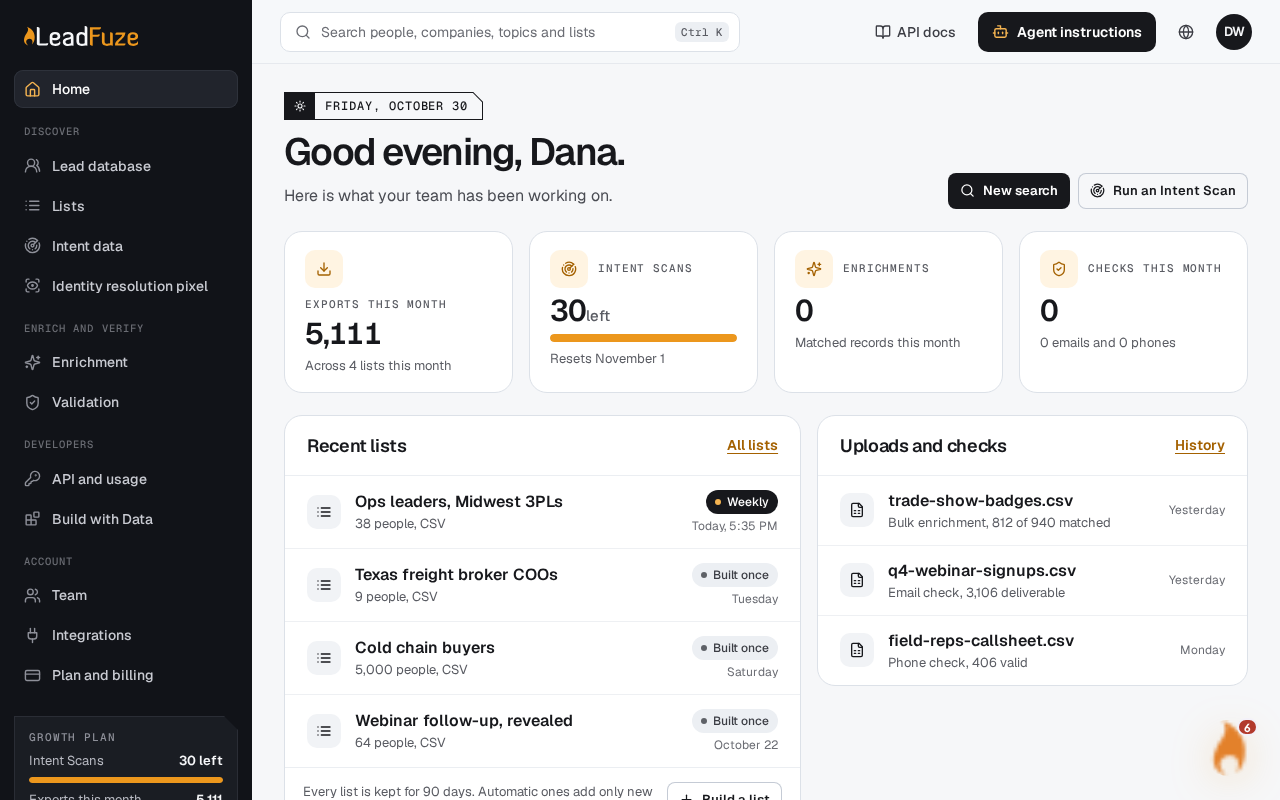
#The top of the page
You see a greeting (Good morning, Good afternoon or Good evening) and today's date. Both use your account's time zone. If none is set, they use UTC.
Two buttons sit on the right:
- New search opens the Lead database.
- Run an Intent Scan opens Intent data.
#The four counters
The counters cover the current month.
| Counter | What it shows |
|---|---|
| Exports this month | People exported, and across how many lists. |
| Intent Scans | Scans left. On a plan, a bar shows how much of your monthly allowance remains. It also shows the date the allowance resets. Without a plan, it shows the scans you have run this month. |
| Enrichments | Matched records this month. |
| Checks this month | Email and phone checks combined, with the split shown underneath. |
Intent Scans reset on the first of each month.
#Recent lists
This card shows your four most recent lists. Each one shows its name, how many people it holds and the file type (CSV). It also shows whether it is Built once or automatic (Daily or Weekly), and when it was created. A list that is still building shows how many people it has so far.
Select All lists to see them all, or Build a list to start a new one in the Lead database.
Every list is kept for 90 days. Automatic lists add only new people.
#Uploads and checks
This card shows your three most recent uploads. They can be bulk enrichment, email checks or phone checks. Each shows its file name, a short result and when it ran. For example, a finished bulk enrichment shows how many records matched out of the total. Select History for the full history. If you have no uploads yet, the card suggests uploading a CSV to enrich it or to check its emails and phones.
#Recent Intent Scans
This table shows your latest scans, with these columns:
- Topic
- Status: Done, Failed, Enriching, Queued or Running.
- Run: when the scan ran.
- Deleted in: the days left before the scan is deleted. A failed scan shows Not charged if the credit was refunded, or Retry is free if not. A scan that is still running shows When done.
Select Open on a row to go to Intent data.
#The sidebar
The sidebar groups the app into these sections:
| Section | Pages |
|---|---|
| Workspace | Home |
| Discover | Lead database, Lists, Intent data, Identity resolution pixel |
| Enrich and verify | Enrichment, Validation |
| Developers | API and usage, Build with Data |
| Account | Team, and other account pages |
Super admins also see a Super admin section above these, with Overview, Users and accounts and Role families.
At the bottom of the sidebar, a plan box shows your plan and how much you have used:
- On a plan: it shows the plan name, your Intent Scans left, and Exports this month. On the Starter plan, exports are shown as a count out of 25,000.
- Without a plan: it shows No plan yet, with your Export credits and Exports this month.
Was this article helpful?
Still stuck?