

Search across the LeadFuze app
Press Ctrl K anywhere in the app, or click the search box in the top bar. Type what you want and pick a result. The search page is at /app/search.
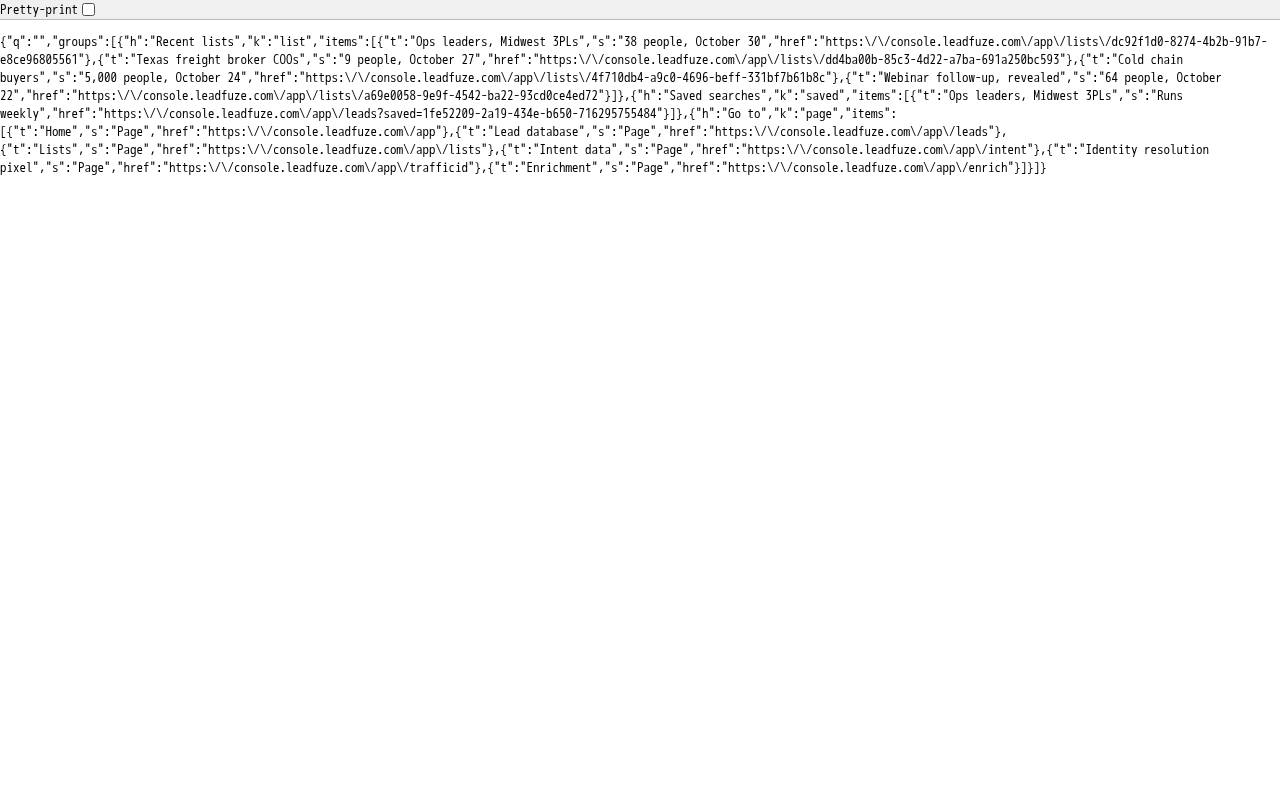
#What you see before you type
The box shows places to start:
- Recent lists: your latest lists.
- Saved searches: your saved lead searches.
- Go to: shortcuts to the main pages.
#What you can find once you type
Results appear in groups. Each group shows up to 5 matches. Searches are cut off at 120 characters.
| Group | What it matches | Where it opens |
|---|---|---|
| Lead database | Your text as a people search, a domain, an email, a LinkedIn profile or a job title | The Lead database page |
| Lists | Names of your lists. Each result shows how many people it holds and the date. | That list |
| Saved searches | Names of saved searches. Each shows its schedule, or "Saved search". | The Lead database with that search loaded |
| Intent Scans | Scan topics. Each shows the date it was scanned. | Intent data |
| Pixel sites | The name or URL of your IDRP sites | That site in the identity resolution pixel page |
| Team | Teammates by name or email | Team |
| Pages | Page names and related words | That page |
Empty groups are hidden. Only your own account's items appear.
#Lead database shortcuts
The top group changes with what you type:
- An email address gives you Look up that email, which finds the person with that email.
- A LinkedIn profile (a link containing linkedin.com/in/) gives you Look up this LinkedIn profile.
- A website domain such as acme.com gives you Everyone at that domain. These are people whose company website is that domain.
- Any text gives you Search for your text. This finds people whose profile matches any of those words.
- Plain words (no numbers, @ or / and 60 characters or fewer) also give you Job title: your text. It finds people with that title or similar ones.
#Finding pages
Page results match every word you type against the page name and related words. For example, "invoices" finds Plan and billing. You can also search by words such as "csv", "verify", "keys" or "invite".
The pages you can reach are Home, Lead database, Lists, Intent data, Identity resolution pixel, Enrichment, Validation, API and usage, Build with Data, Team, Integrations and Plan and billing.
Note
Characters such as % are treated as plain text, not wildcards.
#For super admins
Super admins see different results. With an empty box, they see Pinned accounts (up to 8) and admin pages. When they type, they search Accounts (by name, owner email or account ID), People and admin Pages. A super admin who is using an account as its customer sees the customer search instead.
Was this article helpful?
Still stuck?