

Search the lead database with filters
Open the lead database, choose Market Based Search, switch to Filters, and add the details that describe your audience. Results update on their own. Browsing and counts are free. You only use your plan when you reveal contact details or export.
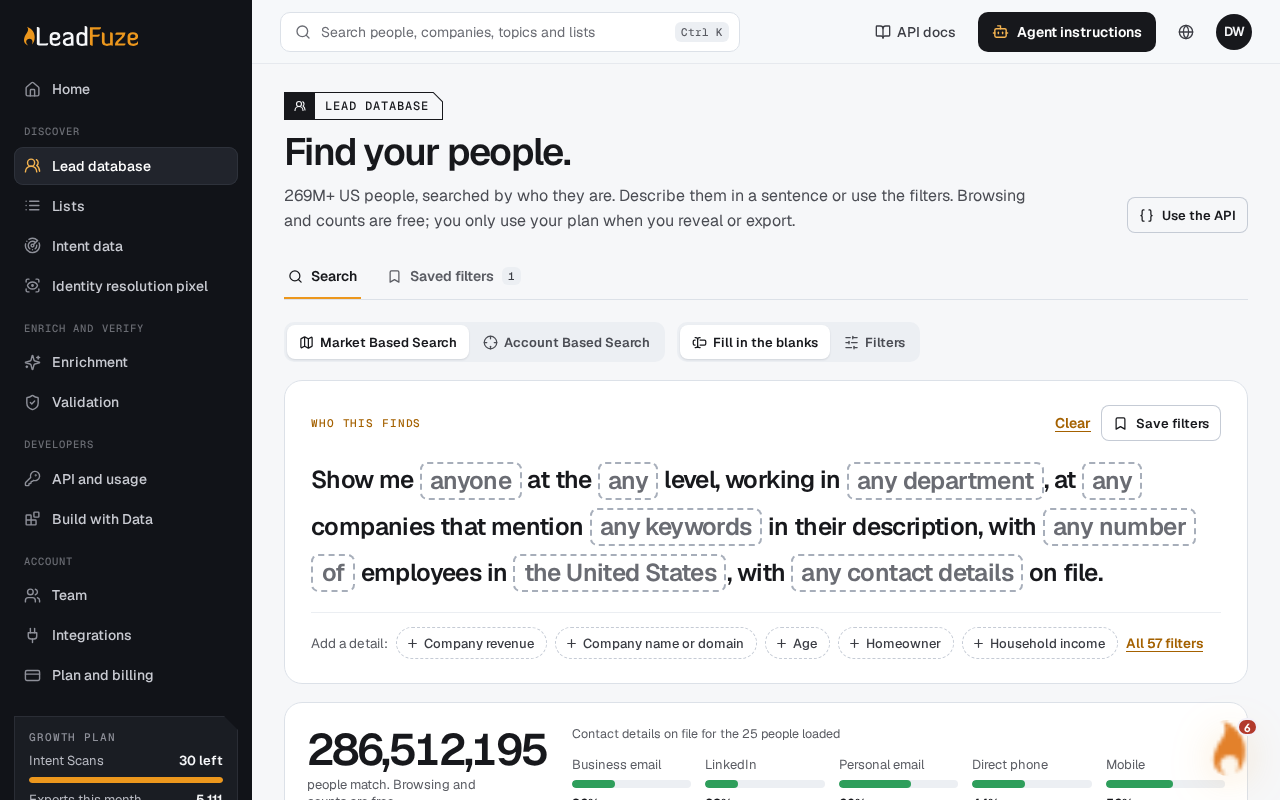
#Open the lead database
Go to the lead database page. The Search tab is where you build a search. The Saved filters tab lists searches you saved earlier.
#Choose a search type
Pick Market Based Search to find many people who match a profile. Pick Account Based Search to look up one exact value instead (see below).
#Choose how you build the search
Fill in the blanks lets you describe the audience as a sentence and edit each part. Filters shows the filters directly. Both build the same search.
#Add your filters
Add job titles, seniority, department, industry, company size and location. In a location filter you can enter a state, a city or a five-digit ZIP code. Add contact-detail filters if you only want people with a business email, mobile phone, personal phone or LinkedIn URL on file.
#Review the results
The results refresh shortly after you stop typing. Contact details show as on file or not until you reveal them.
#How filters combine
- Values inside one filter are OR. A search for two industries finds people in either.
- Different filters are AND. A person must match every filter you set.
- Anything you exclude removes the person, even if they match other filters.
#Job titles
Titles you include or exclude are matched as whole words. The Common title variants switch adds common alternatives. For example, "CEO" also finds "Chief Executive Officer", and "VP of Sales" also finds "Vice President of Sales". It is on by default.
#Limits and error messages
| Rule | Detail |
|---|---|
| Included and excluded values | At most 200 across all filters. Over that, you see "Use at most 200 included and excluded values across filters." |
| Sentence or keyword text | Up to 500 characters, with no control characters. |
| Page size | 1 to 50 people per page. The default is 25. |
| Contact-detail filters | Choose either on file or missing for the same detail. Setting both ways shows "Conflicting availability filters. Choose either on file or missing." |
| Match type | Most fields support exact matching only. Phrase matching is limited to a few text fields, such as company description and work history. |
#Account Based Search
Use this to look up one exact value: a LinkedIn URL, email, domain or phone number. The search waits until the value is complete, so half-typed input never browses everyone. A LinkedIn lookup needs the full profile URL, not just linkedin.com/in/.
An exact person lookup ignores all filters. A company domain lookup keeps your person filters, such as seniority and department, so you can narrow the people at that company.
#Save a search
Select Save filters to keep the search. Select Clear to start over.
Note
Browsing and counts do not use your plan. Revealing contacts and building a list do.
Was this article helpful?
Still stuck?