

Filter leads by industry
Add one or more industries to a Market Based Search to find people at companies in those sectors. The industry filter is part of the Filters view. Industry filtering applies to Market Based Search only.
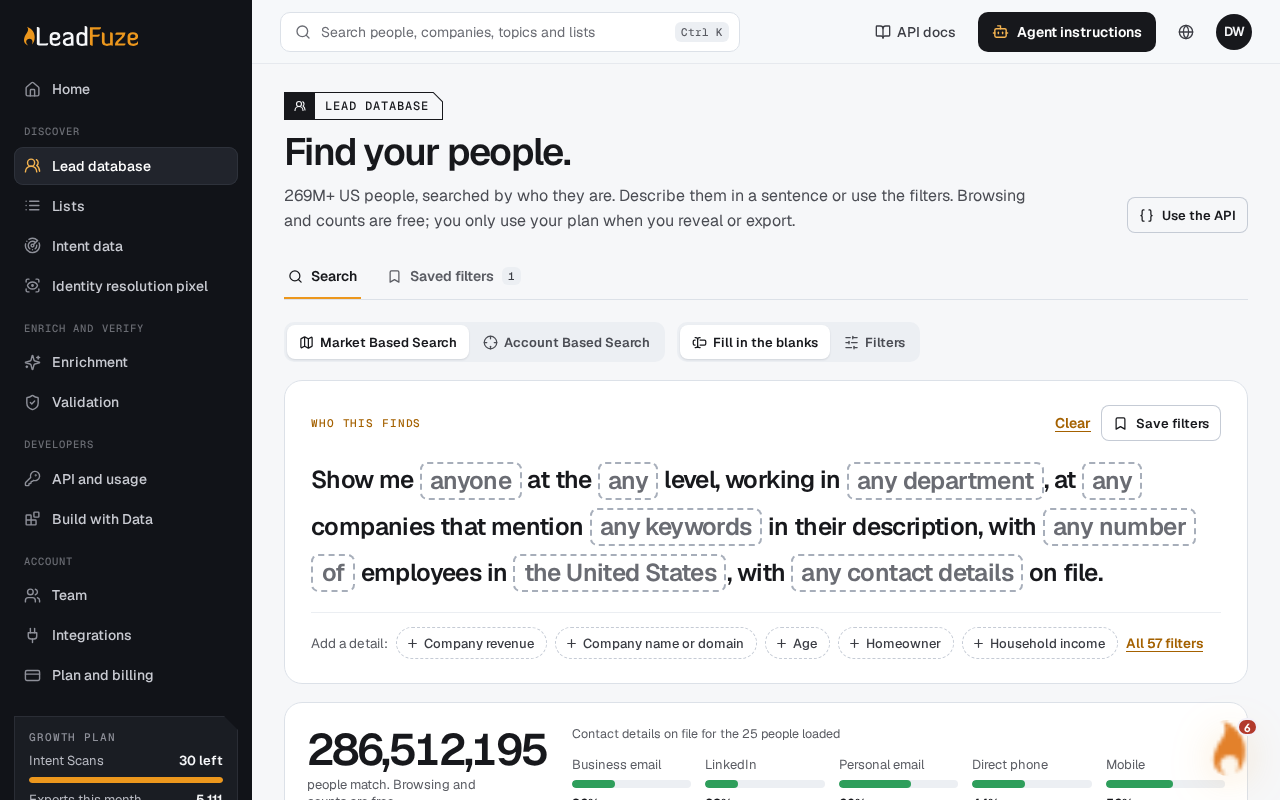
#Start a market search
Open the lead database and choose Market Based Search.
#Open the industry filter
Switch to Filters and open the industry filter in the company details. Or use Fill in the blanks and edit the industry part of the sentence.
#Pick industries
Start typing and choose from the suggestions, such as Accounting, Banking, Insurance or Restaurants. Add as many as you need. Select a chip to remove it.
#Check the results
The results refresh shortly after you stop typing.
#How industries combine
- Industries you add are OR. A person at a company in any of them matches.
- Industry is AND with your other filters, such as job title or location.
- Excluding an industry removes people at companies in that industry, even if they match everything else.
#Good to know
- Suggestions come from a fixed list of industry values. You can still enter a custom value, but it only matches if it is spelled the same way the data stores it.
- Matching is exact. A partial name does not match a longer industry.
- Some industries appear in the list under two spellings. For example, "Business Consulting and Services" and "Business Consulting And Services" are separate values. Add both to cover both.
- Industry values count toward the limit of 200 included and excluded values across all filters.
Note
In Account Based Search, industry is not applied. Use Market Based Search to filter by industry.
Was this article helpful?
Still stuck?