

Download your invoices
Open Plan and billing and scroll to Invoices. Open an invoice from the list, then save it. Only the account owner can see invoices.
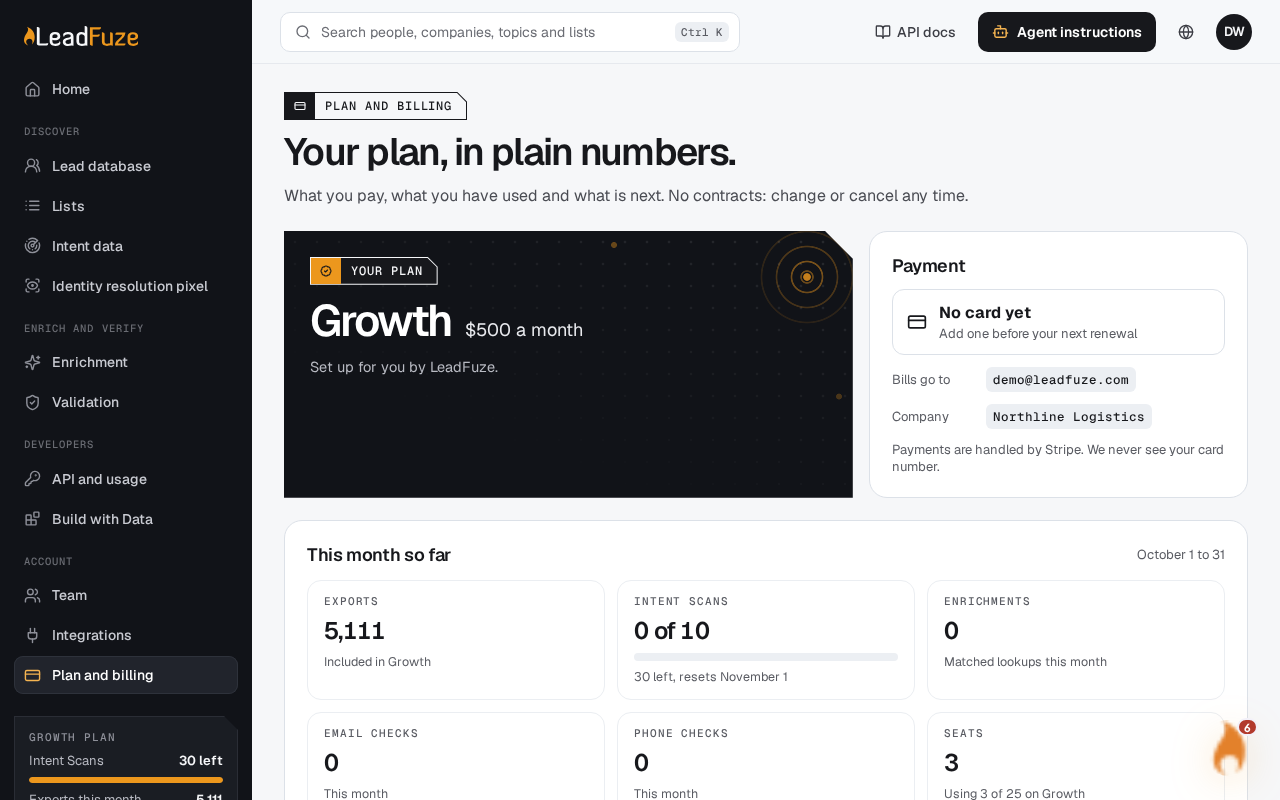
#Open Plan and billing
Go to Plan and billing in the app. You must be signed in as the account owner.
#Find the invoice
In Invoices, each row shows the date, what the payment was for, the amount and its status. Statuses are Paid, Due, Not paid and Void.
#Open the invoice
Select the invoice. Depending on the invoice, you either go to a payment-provider page, or see a LeadFuze invoice page.
#Save it
On the LeadFuze invoice page, select Print or save as PDF. Then choose to save as a PDF in your browser's print window.
#What the invoice shows
The LeadFuze invoice page lists:
- The invoice number and its status.
- The date, in your account's timezone.
- Billed to: your account name and the owner's email.
- From: LeadFuze.
- What the payment was for, and the total amount.
Note
An invoice marked "Local test billing" is from a test setup. No card was charged for it.
Was this article helpful?
Still stuck?