

Export identified visitors to CSV
You can download the identified visitors for a website as a CSV file. Each export covers one site and one time range. You can also limit it to visitors who fit a saved filter.
#Choose what goes in the file
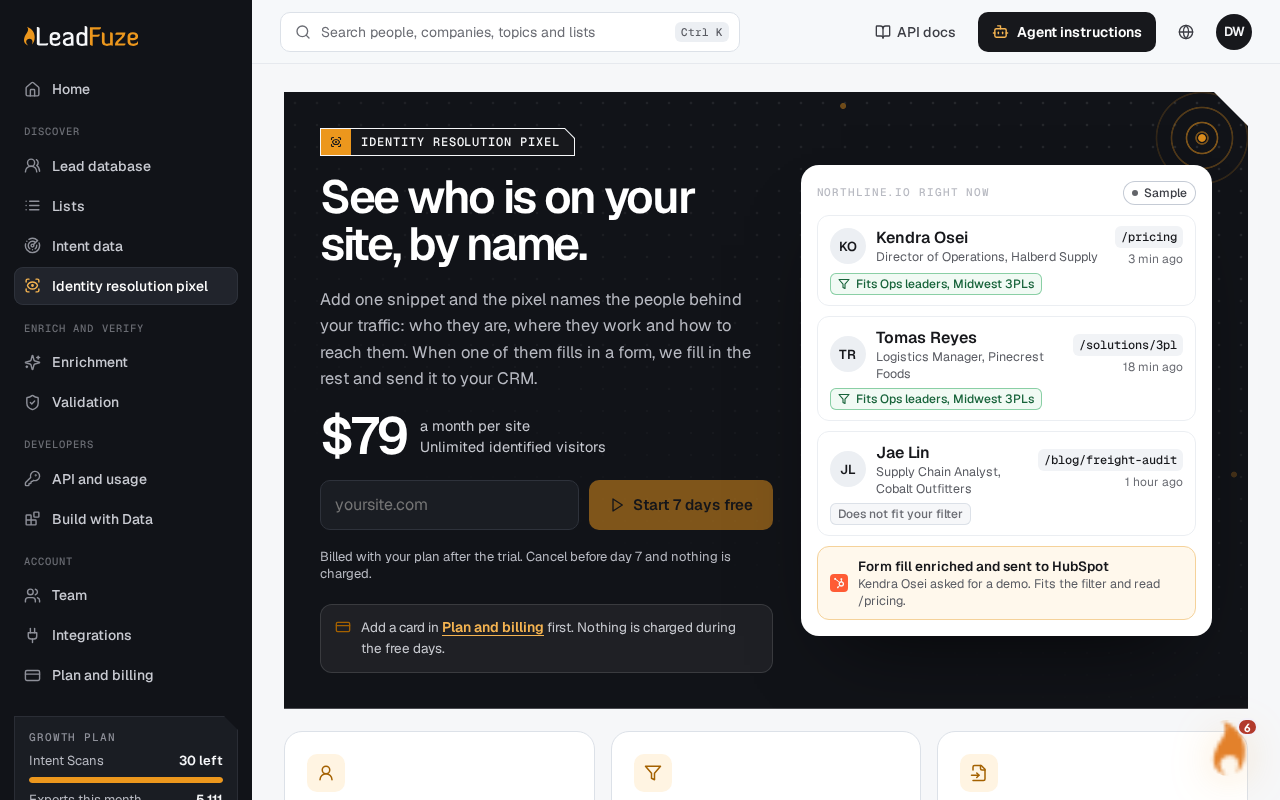
Open Identity resolution pixel in the app and pick the site you want. The export uses two settings.
| Setting | Options | Default |
|---|---|---|
| Range | Today, 7 days (d7), 30 days (d30) | 30 days |
| Saved filter | Any filter you saved in the lead database | None, so everyone identified in the range is included |
The range counts from when LeadFuze identified the visitor.
To use a saved filter, save it in the lead database first.
Note
Without a saved filter, the file holds up to 10,000 visitors, the most recently identified first.
#What the file contains
The first row is a header. Each visitor after that gets one row.
Visitor and company details
first_namelast_namejob_titleseniority_leveldepartmentbusiness_emailmobile_phonedirect_numberlinkedin_urlcompany_namecompany_domainprimary_industrycompany_employee_countprofessional_cityprofessional_state
Activity on your site
pages_readvisitslast_pagelast_seen
#File name and format
The file is a .csv named after your site's address, followed by -visitors.csv. For example, yoursite.com gives yoursite.com-visitors.csv. Any characters other than letters, numbers, dots and hyphens become hyphens.
#Formula protection
If a cell starts with =, +, - or @, LeadFuze adds a leading quote (') so a spreadsheet does not run it as a formula. Phone numbers such as +1 555 010 0003 are left as they are.
#If the file is empty
The export only includes visitors LeadFuze has identified. Once the pixel is installed, identified visitors show up under Visitors within a few minutes. If you see none, check that the pixel is live on your site. Try a longer range too.
Was this article helpful?
Still stuck?